The quick answer
Use the local converter for a first trace and a vector editor for exact shapes, editable text, and cleanup. Raster and vector editors handle paths differently, so verify that the saved SVG contains the objects you expect.
JPG to SVG in illustrator Photoshop and Adobe: what matters
Photoshop is primarily a raster editor. A saved work path and a placed pixel layer are different objects; exporting or renaming a pixel layer does not automatically trace it. For an automatic color trace, use this converter and inspect the resulting paths in a vector editor.
If you use Photoshop to prepare the source, improve contrast and crop first. Check your installed version’s export support; use Adobe’s documentation for version-specific path and export operations.
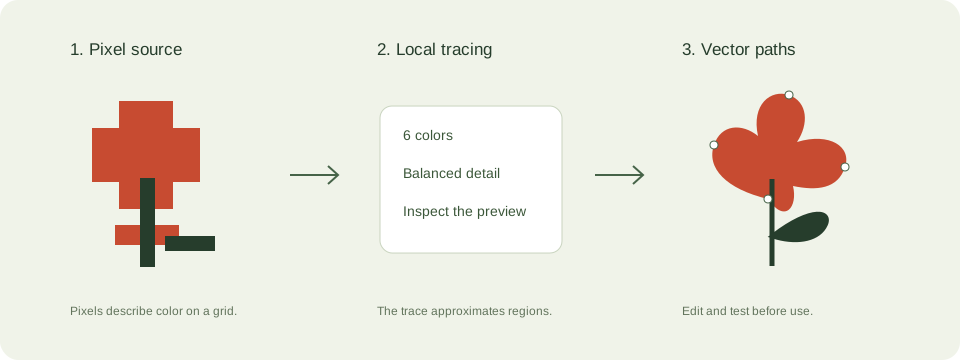
A practical vector editing workflow workflow
- Crop a source file you own and keep the original for comparison.
- Trace locally here or use the documented trace feature in your chosen editor. Start with few colors.
- Inspect the objects and rebuild editable lettering where necessary. Remove unintended background regions.
- Save as SVG, reopen it, and test it in the software or browser where it will be used.
Check these details before you export
- A selection converted to a path is not automatically a faithful multicolor trace.
- Some exports keep linked images. Verify self-contained vector geometry.
- Application features vary by version. Check the current official documentation for your installed software.
Where this workflow stops
This website does not run Photoshop, GIMP, CorelDRAW, or Inkscape and does not install plugins for them.
For a first local trace, use the JPEG to SVG converter. If you are working with transparent artwork, read the PNG transparency guide. Keep an original file so you can compare your changes.
Reference and further reading
Inkscape: official tracing tutorial provides background for this workflow. Platform requirements and editor features can change; check the current instructions for your destination.
Written for JPEGtoSVG by Shahab Uddin. These guides describe practical checks and limitations; they do not promise lossless tracing or automatic machine-ready output.