The quick answer
For a useful logo SVG, trace the clearest source with a limited palette and inspect curves and outlined letters. Flat logos trace well; a tiny screenshot or compressed JPEG may need manual rebuilding.
Logo to SVG Converter: what matters
Choose the clearest logo source, preferably an original PNG rather than a compressed image copied from a webpage. A limited palette reduces accidental regions from JPEG compression.
Automatic tracing is useful for a first draft. Restore exact symmetry, colors, and typography manually when the file will become an official brand master.
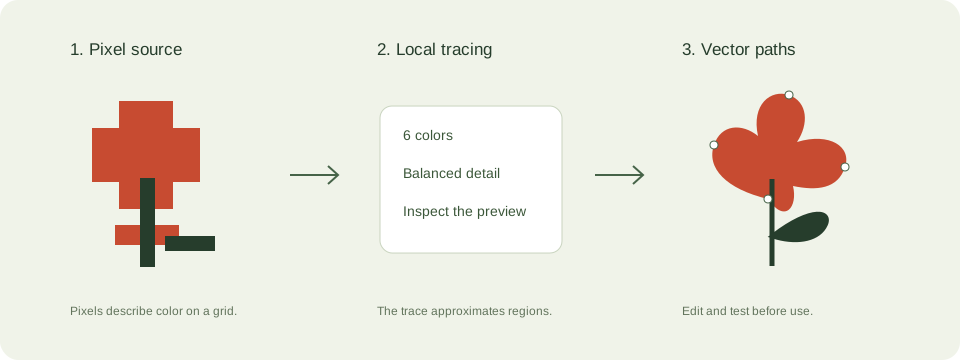
A practical logo vectorization workflow
- Use the original logo asset when possible. Crop the canvas, preserve its aspect ratio, and avoid tilted photographs.
- Start with 6 colors and reduce the palette if compression artifacts become unwanted regions.
- Inspect circles, symmetry, letter counters, and edge alignment at high zoom. Recognition alone does not prove geometric accuracy.
- Restore exact brand colors and rebuild lettering in a vector editor when the artwork needs to match a brand master.
Check these details before you export
- Tracing approximates the pixels rather than reconstructing the original designer’s paths.
- Outlined lettering needs no font file, but it is no longer editable or searchable text.
- Use artwork you own or have permission to reproduce. Conversion does not grant trademark rights.
Where this workflow stops
For exact geometry, professional signage, or custom typography, manual vector rebuilding may be necessary.
For a first local trace, use the JPEG to SVG converter. If you are working with transparent artwork, read the PNG transparency guide. Keep an original file so you can compare your changes.
Reference and further reading
Inkscape: vector editing tutorials provides background for this workflow. Platform requirements and editor features can change; check the current instructions for your destination.
Written for JPEGtoSVG by Shahab Uddin. These guides describe practical checks and limitations; they do not promise lossless tracing or automatic machine-ready output.