The quick answer
A drawing or signature becomes a useful SVG when the paper background is clean and strokes are continuous. Trace with few colors and inspect thin lines. Outline tracing produces filled shapes, not necessarily a single centerline.
How to convert signature to SVG: what matters
Scan your signature with dark ink on evenly lit white paper and crop closely. A strong contrast between ink and paper makes the trace easier to inspect.
Check small dots and detached strokes. The exported signature is an artwork file, not proof of identity or an electronic-signature verification method.
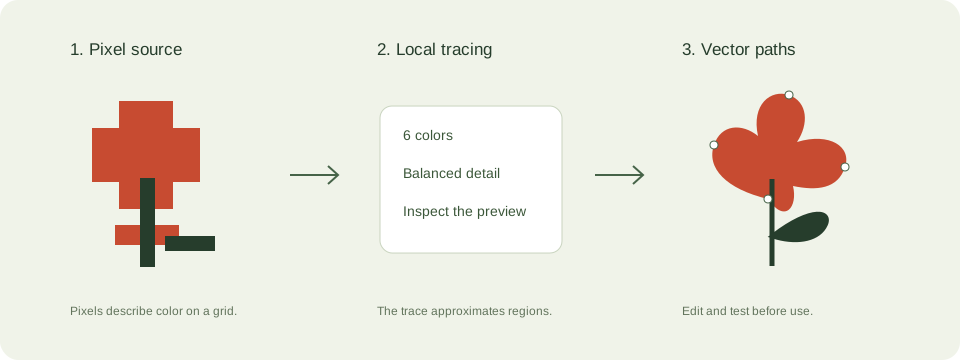
A practical drawings and signatures workflow
- Scan or photograph the page straight on in even light. Crop out page edges and improve contrast if the paper looks gray.
- Use the silhouette preset. Enable white removal only when the white region is paper background.
- Inspect dots, crossings, pen lifts, and the narrowest strokes. Improve source resolution rather than expecting tracing to reconnect broken lines.
- Export at the final intended size. Use a dedicated centerline workflow for a pen plotter if you need one stroke per line.
Check these details before you export
- Faint pencil marks may disappear when small paths are filtered as noise.
- A signature is personal information. Its pixels are processed locally and are not saved to a server by this tool.
- Filled outline tracing and centerline tracing are different operations.
Where this workflow stops
This tool does not perform OCR, handwriting recognition, signature verification, or centerline tracing.
For a first local trace, use the JPEG to SVG converter. If you are working with transparent artwork, read the PNG transparency guide. Keep an original file so you can compare your changes.
Reference and further reading
Inkscape: bitmap tracing provides background for this workflow. Platform requirements and editor features can change; check the current instructions for your destination.
Written for JPEGtoSVG by Shahab Uddin. These guides describe practical checks and limitations; they do not promise lossless tracing or automatic machine-ready output.