The quick answer
Reduce traced SVG size by using fewer colors and less detail during conversion. For an existing SVG, the local cleaner removes comments, nonvisual metadata, and active content. It does not simplify geometry or guarantee smaller output.
Ultra-light SVG Converter: what matters
A practical vector starts with a clear source and a deliberate choice of detail. Compare the paths with the original rather than judging quality from a filename or a smooth preview alone.
For this workflow, keep an untouched source file, test a small palette, and inspect the downloaded SVG in its final application. Local tracing does not create editable fonts or recover missing detail.
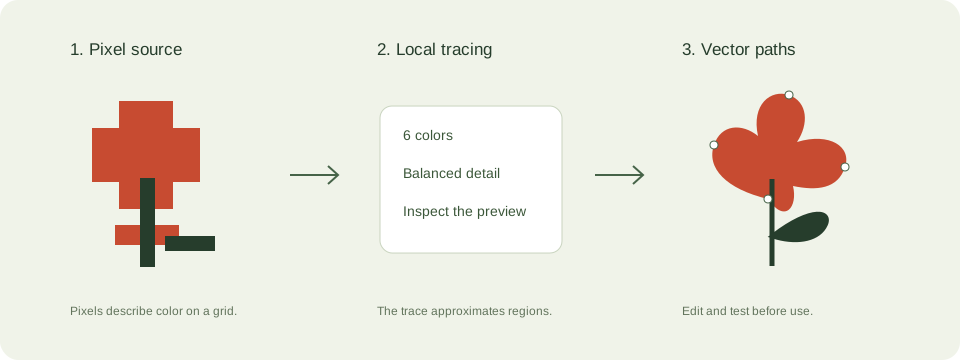
A practical svg size and cleanup workflow
- Keep an untouched original and compare actual file sizes. A small JPEG can trace into a much larger SVG.
- Reduce the trace palette first. Texture and gradients create many separate regions.
- For an existing SVG, use the local cleaner to remove scripts, foreign objects, event handlers, and external references.
- Compare the cleaned artwork with the original. Check fonts, layout, animation, and linking behavior that your project requires.
Check these details before you export
- Path coordinates often dominate file size in complex artwork.
- Security cleanup changes interactive SVGs. This tool targets static artwork.
- Do not inline a large SVG everywhere: choose asset loading according to your page layout.
Where this workflow stops
The cleaner is not a full geometry optimizer or a security guarantee for arbitrary downstream use. It does not merge paths or preserve scripts and external assets.
For a first local trace, use the JPEG to SVG converter. If you are working with transparent artwork, read the PNG transparency guide. Keep an original file so you can compare your changes.
Reference and further reading
MDN: SVG as an image provides background for this workflow. Platform requirements and editor features can change; check the current instructions for your destination.
Written for JPEGtoSVG by Shahab Uddin. These guides describe practical checks and limitations; they do not promise lossless tracing or automatic machine-ready output.