The quick answer
Crop and resize a banner locally in your browser. The Kwork-oriented preset is 1920 × 226 pixels. Confirm the actual upload field before exporting: profile covers, service images, and thumbnails can require different dimensions.
Resize Image To 1920x226: what matters
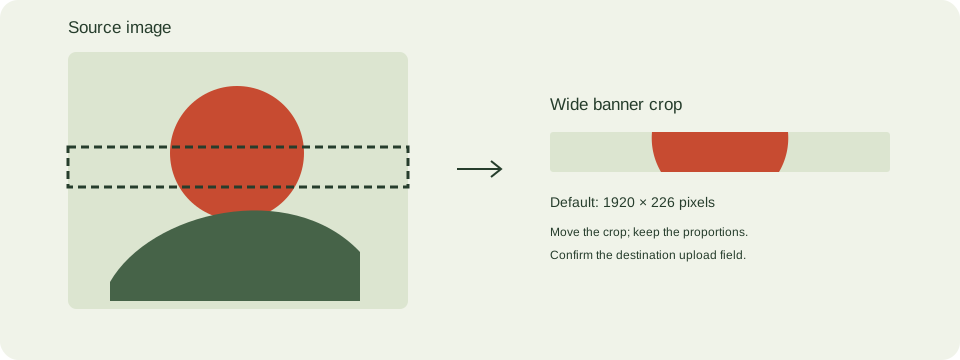
Create a wide banner by cropping an existing image rather than stretching it out of proportion. The editor preserves the image’s proportions and lets you move the crop.
The default export is 1920 × 226 PNG. Change the dimensions when the destination asks for another placement and check its file-size requirements after export.
A practical banner resizing workflow
- Upload JPEG, PNG, or WebP. Use a source at least as large as the final output when practical.
- Set the dimensions from the current destination upload instructions. This editor starts at 1920 × 226.
- Move the crop sliders to keep the subject visible. A short, wide banner crops much of a square source.
- Download PNG and inspect it in the destination upload field on desktop and mobile.
Check these details before you export
- Upsizing cannot recover lost detail. Avoid tiny text in narrow covers.
- The canvas exports exact pixel dimensions, but the destination can crop it further.
- Gig cards and profile headers are different placements. Check their fields separately.
Where this workflow stops
This editor crops and scales. It does not generate promotional copy, verify changing platform requirements, or guarantee marketplace approval.
For a first local trace, use the JPEG to SVG converter. If you are working with transparent artwork, read the PNG transparency guide. Keep an original file so you can compare your changes.
Reference and further reading
Kwork: confirm destination upload requirements provides background for this workflow. Platform requirements and editor features can change; check the current instructions for your destination.
Written for JPEGtoSVG by Shahab Uddin. These guides describe practical checks and limitations; they do not promise lossless tracing or automatic machine-ready output.