The quick answer
A transparent PNG can be traced without a rectangular background. Transparent pixels and white pixels are different: preserving alpha keeps transparent areas, while removing white can also remove white details inside your artwork.
PNG to SVG: trace your artwork: what matters
A practical vector starts with a clear source and a deliberate choice of detail. Compare the paths with the original rather than judging quality from a filename or a smooth preview alone.
For this workflow, keep an untouched source file, test a small palette, and inspect the downloaded SVG in its final application. Local tracing does not create editable fonts or recover missing detail.
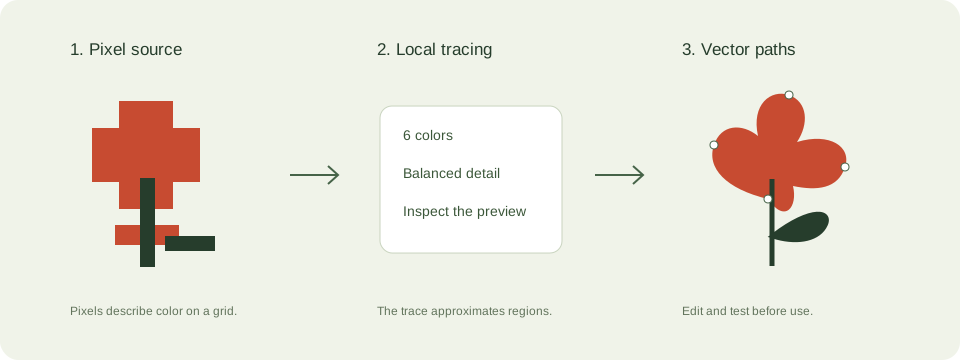
A practical png transparency workflow
- Use the original PNG with alpha transparency. Screenshots often flatten transparency into a solid background.
- Choose a small palette. Leave white removal off when white lettering or highlights belong to the design.
- Check the checkerboard preview for a surviving background rectangle and missing interior details.
- Place the downloaded SVG over light and dark backgrounds in your editor before publishing it.
Check these details before you export
- JPEG has no alpha channel, so a white JPEG background can become a filled path.
- White removal is color filtering rather than intelligent subject segmentation.
- Anti-aliased edges may retain pale pixels. A cleaner source is often better than more trace colors.
Where this workflow stops
The tool does not separate subjects from complex photographic backgrounds. Remove those backgrounds in a suitable editor first.
For a first local trace, use the JPEG to SVG converter. If you are working with transparent artwork, read the PNG transparency guide. Keep an original file so you can compare your changes.
Reference and further reading
MDN: SVG graphics provides background for this workflow. Platform requirements and editor features can change; check the current instructions for your destination.
Written for JPEGtoSVG by Shahab Uddin. These guides describe practical checks and limitations; they do not promise lossless tracing or automatic machine-ready output.