The quick answer
SVG describes shapes and paths; JPEG and PNG store pixels. Use SVG for simple scalable graphics, PNG for raster transparency, and JPEG or WebP for photos. Putting a pixel image inside an SVG container does not vectorize it.
Convert PDF to SVG online: what matters
This tool does not accept PDF files directly. If a PDF contains vectors, open it in a compatible vector editor and save the relevant artwork as SVG to preserve the paths.
If the PDF contains only a scan, export its image at a useful resolution and trace that image here. Check document permissions and inspect the result for lost lettering and page-background shapes.
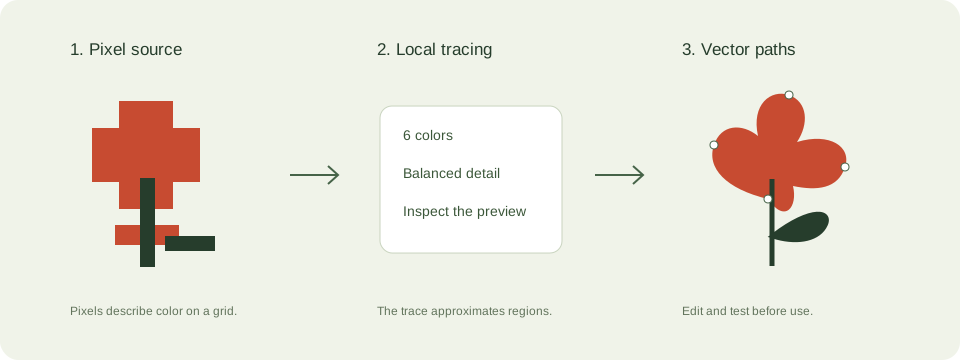
A practical choosing file formats workflow
- Identify whether the source is a logo, diagram, photo, screenshot, or print document. Each has different needs.
- Preserve existing vector paths instead of rasterizing and retracing them. EPS and PDF can contain rasters, vectors, or both.
- Compare a traced SVG with its source at the actual display size. For photos, compare raster compression options instead.
- Check format support, fonts, transparency, colors, and physical dimensions in the destination software.
Check these details before you export
- A viewBox describes coordinates, while physical size also depends on the importing software.
- File extensions do not prove that the contents are editable vectors.
- Round trips can change profiles, text, or appearance. Check the saved result.
Where this workflow stops
The browser tracer accepts JPEG, PNG, and WebP. It does not directly import PDF, EPS, HEIC, AVIF, or PSD, or export stitch files and 3D machine instructions.
For a first local trace, use the JPEG to SVG converter. If you are working with transparent artwork, read the PNG transparency guide. Keep an original file so you can compare your changes.
Reference and further reading
MDN: image formats provides background for this workflow. Platform requirements and editor features can change; check the current instructions for your destination.
Written for JPEGtoSVG by Shahab Uddin. These guides describe practical checks and limitations; they do not promise lossless tracing or automatic machine-ready output.