The quick answer
To convert an image to SVG for Cricut, trace high-contrast artwork with few colors, remove a plain white background if appropriate, and inspect the paths in Design Space before cutting. A vector preview does not guarantee a clean physical cut.
Choosing an SVG converter for Cricut: what matters
The useful question is not just whether Cricut can import an SVG, but whether its paths will cut and weed well at your chosen size. Fine gaps and small isolated regions deserve particular attention.
After import, inspect the layer structure and use a small test cut. A two-color silhouette is often a simpler starting point than a multicolor photo trace.
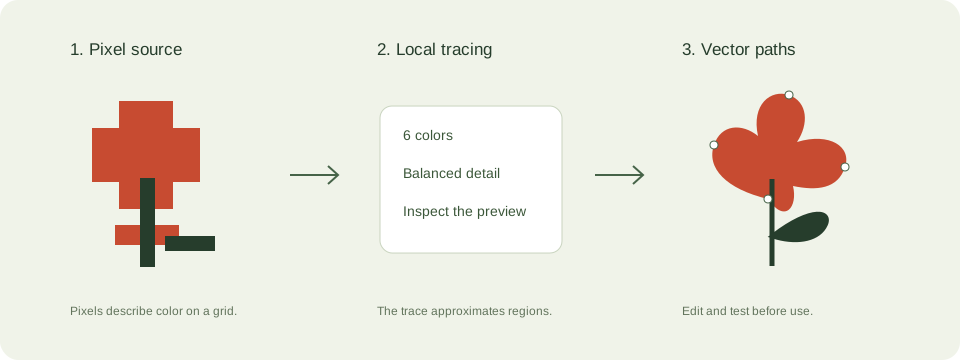
A practical svg for cricut workflow
- Crop and clean the source. Bold artwork is easier to cut than a detailed photograph or faint pencil drawing.
- Use the silhouette preset for a one-color cut, or a small palette for separate layers. Remove white only when it is a background rather than part of the design.
- Download and import into Design Space. Look for tiny islands, unintended background pieces, closed holes, and overlapping regions.
- Resize to the intended material size and make a small test cut before committing expensive vinyl or cardstock.
Check these details before you export
- A line-looking shape can be a thin filled outline rather than a single drawing stroke.
- Small islands make weeding difficult. Reducing source detail can be more helpful than adding colors.
- Blade, material, pressure, and machine settings belong to the cutting workflow, not the SVG file.
Where this workflow stops
PDF upload is not supported here. Preserve genuine PDF vectors in a vector editor, or export an image from a document you own before tracing it.
For a first local trace, use the JPEG to SVG converter. If you are working with transparent artwork, read the PNG transparency guide. Keep an original file so you can compare your changes.
Reference and further reading
Cricut Help: uploading images provides background for this workflow. Platform requirements and editor features can change; check the current instructions for your destination.
Written for JPEGtoSVG by Shahab Uddin. These guides describe practical checks and limitations; they do not promise lossless tracing or automatic machine-ready output.